
-2.png?width=1200&height=630&name=MVPBanner%20(1200%20x%20630%20px)-2.png)
Speakers
Community


Yes — you can influence how Copilot sounds and behaves, but there is no single “make it sound like me” setting. Personalisation is split across Custom Instructions, Saved Memories, Outlook‑specific instructions, chat history, and Agents — and not all of them apply everywhere you use Copilot.
Today I had a Copilot pop up question after I deleted a cancelled calendar invite – asking me ‘do you want me to automatically delete cancelled meeting invites?’ – to which I said yes.
Then, I got two more offers from Copilot – I chose “Help me set up more calendar instructions”.
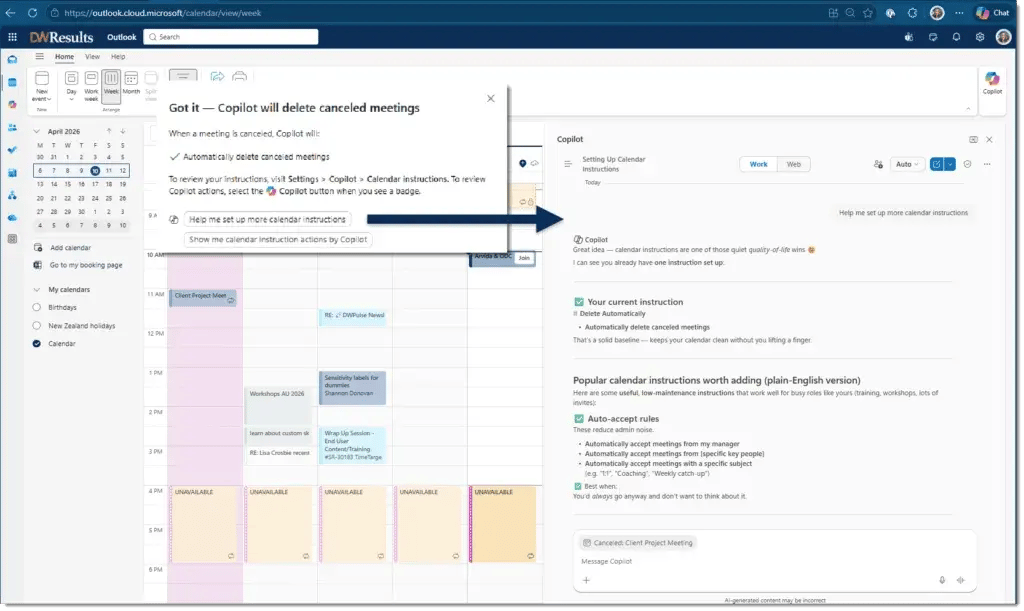
It made me think about all the places and ways you can add a bit of personalisation to the way Copilot works with you – and I wonder how many of them you are using or even know are there. I get asked “Can I make it sound like me?” regularly when running Copilot training. There are actually a few things you can do to personalise the way Copilot responds to you.
Copilot does not have a single, global personality. Personalisation behaves differently depending on where you are using Copilot — Chat, Outlook, Word, Teams, or inside an Agent.
You might already know about Custom Instructions and Copilot Memory? They’re in the Settings:
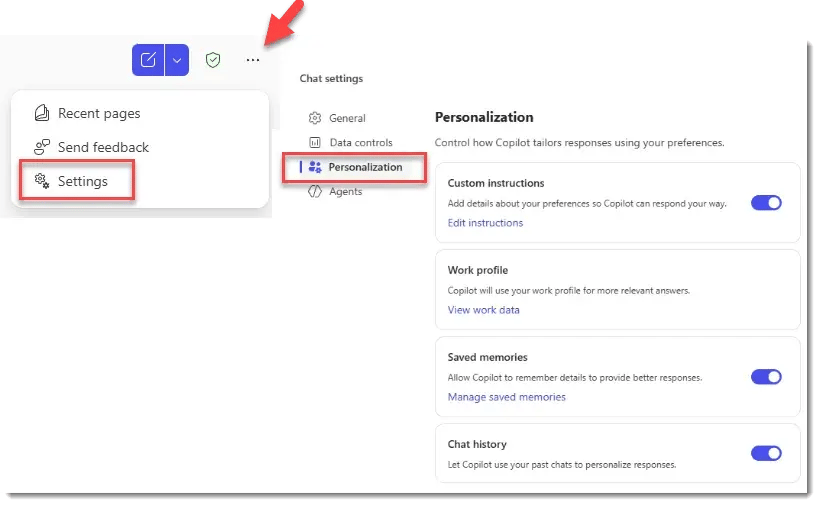
Custom Instructions control how Copilot responds — not what it knows or does. If it’s about response style, structure, or habits Copilot should follow, it belongs in Custom Instructions.
These are all behavioural standards you want Copilot to follow every time, regardless of topic.
| Instruction | Why it belongs in Custom Instructions |
| “When I ask for summaries or explanations, include next steps (especially for meeting summaries).” | This defines how outputs are structured, not a fact about you. |
| “Always call out risks, limitations, or gotchas.” | A response rule you want applied consistently. |
| “Summaries should fit on one screen.” | A formatting / brevity expectation, not memory. |
| “Explain things assuming the reader is not technical.” | Defines default audience assumption. |
| “If something is unclear or uncertain, say so rather than guessing.” | A behavioural guardrail for how Copilot answers |
Saved Memories control what Copilot remembers about you. If it’s about who you are or what you generally prefer, it belongs in Saved Memories.
These are stable facts or preferences about you, not rules for behaviour.
| Memory | Why it belongs in Saved Memories |
| “I am working on a lot of Health and Safety projects.” | This is ongoing contextual background about the type of work you are frequently involved in. Remembering it helps Copilot bring relevant examples, terminology, and considerations without needing to be told each time. It’s not a behaviour rule — it’s situational context that may change over time. |
| “I am always looking to consider multiple viewpoints.” | This reflects a decision‑making preference and mindset, not a formatting or structural rule. Storing this as memory helps Copilot frame responses more thoughtfully and balanced by default, while still allowing flexibility depending on the question. |
| “My professional expertise is mainly around risk.” | This is a stable fact about your professional background. Remembering it helps Copilot calibrate explanations (e.g. not oversimplifying risk concepts, surfacing implications others might miss) without changing its core response behaviour. |
| “Most reporting I do is to the Executive Team.” | This is audience context, not an instruction to always write executives summaries. Keeping it as a memory helps Copilot prioritise clarity, conciseness, and impact when relevant, while still allowing you to override audience expectations when needed. |
But this is not the only place – and these settings do not necessarily apply across all Copilot ‘surfaces’ – ie everywhere you use Copilot. Here’s a summary:
| Mechanism | What it is | Where you configure it | What it’s best for | Where it applies | Key limitations / gotchas |
| Outlook Draft Instructions | Email‑specific instructions for how Copilot drafts emails in Outlook. | Outlook (new Outlook or Outlook on the web) → Copilot settings → Draft instructions | Enforcing email tone, length, and structure without touching global Copilot behaviour. | Copilot email drafting in new Outlook only. | – Does not apply anywhere else (not Chat, not Word, not Teams). – Classic Outlook does not support this. – Controls drafting style, not sending/triage decisions. |
| Outlook Calendar Instructions | Rules that tell Copilot how to automatically handle meeting invites (e.g. accept, decline, follow, or remove cancelled meetings). | Outlook (new Outlook or Outlook on the web) → Copilot settings → Calendar Instructions (or ask Copilot to | Automating calendar actions and meeting hygiene without manual triage. | Outlook calendar only. | These control actions, not wording or reasoning. They are completely separate from Custom Instructions and Saved Memories |
| Custom instructions | A standing brief that tells Copilot how you want it to respond (tone, structure, level of detail). | Copilot Chat → Settings → Personalisation → Custom instructions | Setting default response style (plain English, bullets, call out risks, etc.) so you don’t repeat yourself every time. | Copilot Chat conversations (this is the only place Microsoft clearly guarantees it applies). | – Shapes responses, not actions. – Not guaranteed to apply consistently inside Word/Excel/PowerPoint or agents. – If “Enhanced personalisation” is turned off by admin, instructions stop applying (but aren’t deleted). |
| Copilot Memory (Saved memories) | Things Copilot remembers about you (role, preferences, recurring patterns). | Copilot Chat → Settings → Personalisation → Saved memories | Reducing repetition (“I prefer bullet points”, “I’m non‑technical”, “I work in comms”). | Copilot Chat (used alongside Custom instructions). | – Turning memory off does not delete existing memories – you must delete them. – Copilot decides what’s “memory‑worthy” unless you explicitly say “remember this”. – Stored in your Exchange mailbox (hidden folder, same compliance rules). |
| Chat history personalisation | Copilot infers preferences from previous chats (even if nothing was explicitly saved as a memory). | Automatic (if enabled); controlled under Personalisation settings | Explains why Copilot feels “smarter over time” for frequent users. | Copilot Chat. | – Two users asking the same question may get different answers because their chat history differs. – Disabled entirely if Enhanced personalisation is turned off by admin. |
| Temporary Chat | A one‑off Copilot chat that doesn’t use or update personalisation. | Copilot Chat → New chat → Temporary chat | Sensitive topics, clean‑slate thinking, or testing answers without bias from memory/history. | That single chat only. | – Message doesn’t appear in chat history. – Copilot can’t reference it later. – Content may still be retained under organisational retention policies. |
| Prompt‑level instructions | Instructions you put directly into a prompt that guide the way Copilot will respond within that session. | Anywhere you type a prompt | Overriding defaults for a specific task (audience, format, constraint). | That session only. | – Easy to forget to include. – Inconsistent across users. – Not personalisation – just good prompting. |
| Agents | Purpose‑built Copilot experiences designed to perform specific tasks or roles, often with defined goals, data sources, and tools. | Within the Agent configuration itself (not via Copilot Chat personalisation settings). | Automating or guiding specific workflows (e.g. research, analysis, content creation) where behaviour and scope need to be tightly controlled. | Only inside the Agent where it is defined. | Custom Instructions and Saved Memories from Copilot Chat do not reliably apply to Agents. Agents run independently, so behaviour must be configured and governed at the Agent level rather than assumed from Chat‑level personalisation |
Microsoft 365 Copilot personalisation isn’t a single on/off switch. How Copilot responds, what it remembers, and what it can act on are controlled in different places — and they don’t apply everywhere. Understanding those boundaries is key to getting predictable, useful results, and it doesn’t remove the need to review what Copilot produces before you rely on or share it.
Love what you learned in this article? Contact us to find out about our training, or attend our conference in Melbourne this May!
References: